
Tab Wrangler Alternative: Auto-Closing Tabs vs Organizing Them on Purpose
Why relying on a timer to auto-close inactive browser tabs often backfires, and how purposeful folder organization creates a cleaner, stress-free workspace.
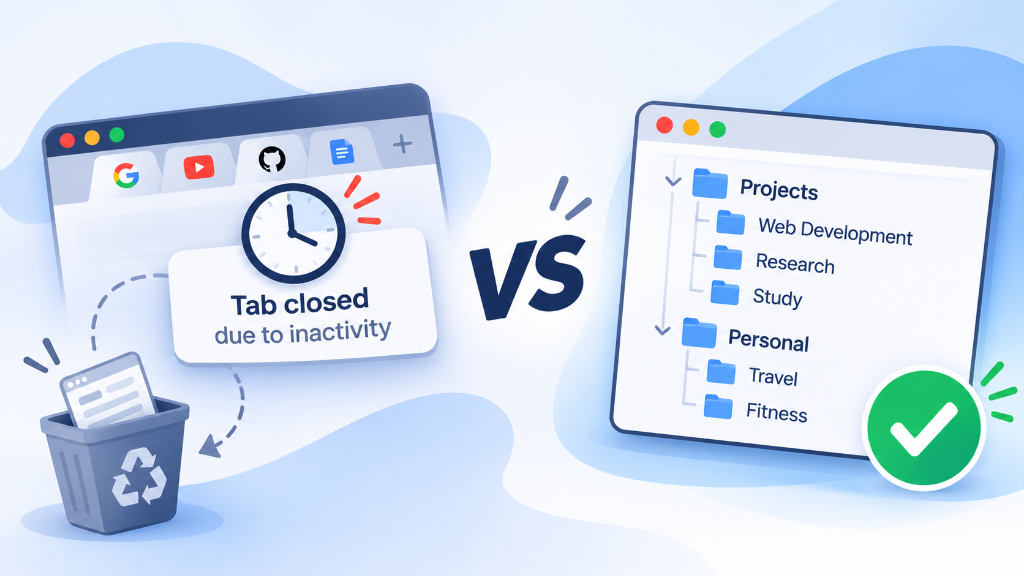
Most people do not hoard browser tabs because they love seeing sixty tiny favicon slivers crammed into the top of their screen. They hoard tabs out of a reasonable fear: the moment you close a page, you break the train of thought that brought you there.
When the clutter becomes overwhelming, many users look for a tab cleanup extension to stop tabs piling up without demanding constant manual triage. That search almost always leads to Tab Wrangler.
Tab Wrangler approaches tab overload through automated eviction. If you do not interact with a tab for twenty minutes, the extension quietly closes it and sends the URL into a holding pen called the "Tab Corral." On the surface, letting an algorithm close tabs automatically chrome users leave idle seems like the ultimate hands-off fix.
In practice, automating tab closure treats the symptom while creating a subtle, frustrating new problem: your browser starts making executive decisions about what you still care about.
If you have ever had an important reference page vanish while you were drafting a document in another window, you know the friction of timer-based tab managers. Here is an honest look at the trade-offs of automated tab closing, a breakdown of tab wrangler vs intentional organization, and why a folder-based system serves as a more reliable tab wrangler alternative for serious work.
How Tab Wrangler Operates (and Why It Attracts Users)
Tab Wrangler is a free, open-source utility that has been around for over a decade. Its core premise is straightforward: prevent browser bloat by enforcing an inactivity timeout.
You configure a threshold—say, fifteen or thirty minutes—and set rules for pages you never want closed (like pinned tabs or pages playing audio). As you browse, any unfocused tab whose timer expires gets swept out of your tab strip. The link is saved into the extension's Tab Corral, where you can browse a reverse-chronological list of recently closed pages and restore them if needed.
For casual, open-ended web surfing, this model has genuine appeal. If you open five Reddit threads, three news articles, and a product review while drinking coffee, you probably do not care if those pages disappear forty minutes later. They were ephemeral reads, and having them quietly swept away keeps your browser responsive without requiring manual cleanup.
The Flaw: Timers Cannot Measure Value
The breakdown occurs the moment you shift from casual reading to multi-step knowledge work.
A countdown timer measures only one metric: elapsed time without a click. But in real-world research, time spent away from a tab rarely correlates with whether that tab is finished.
Consider a common workflow:
- You open three academic papers or API specifications to inform an architectural decision.
- You spend forty-five minutes focused on your code editor, writing implementation logic against those specs.
- You switch back to your browser to check a parameter definition, only to find all three documentation pages gone.
To recover them, you have to open the Tab Corral, scroll through dozens of unrelated tabs that were closed throughout the morning, and hunt down the exact URLs you were using. The cognitive cost of retrieving a closed tab from an unorganized queue is often higher than the mental weight of leaving it open in the first place.
When you auto close inactive tabs chrome extensions treat your working documents like disposable trash. That breeds an uneasy browsing habit: you find yourself clicking tabs purely to reset their timers, or obsessively whitelisting every single domain to prevent accidental closures. At that point, the automation is creating more work than it saves.
The Tab Corral Problem: A Landfill Instead of an Archive
The secondary issue with timer-based cleanup is where those evicted tabs end up.
The Tab Corral acts as a temporary holding tank. It lists closed pages by timestamp, creating a single flat feed of everything your browser discarded over the past week.
A flat chronological feed works reasonably well if you realize you lost a tab thirty seconds ago. It fails completely when you return to a project on Thursday and try to locate a reference you opened on Monday morning. Was it closed before or after lunch? What was the exact page title?
Because the Corral has no folders, tags, or project groupings, it quickly resembles a digital recycling bin. If you are looking for a tab corral alternative that preserves research context rather than dumping links into a chronological void, relying on a flat list will always leave you hunting for lost work. You are left with two unappealing options: dig through hundreds of timestamped links, or accept that anything swept into the corral is effectively gone.
Organizing on Purpose: Curated Workspaces vs. Timers
A structured tab manager flips the relationship between tabs and memory. Instead of keeping tabs alive in your tab bar until a timer kills them, you give them a permanent home so you can close them immediately on purpose.
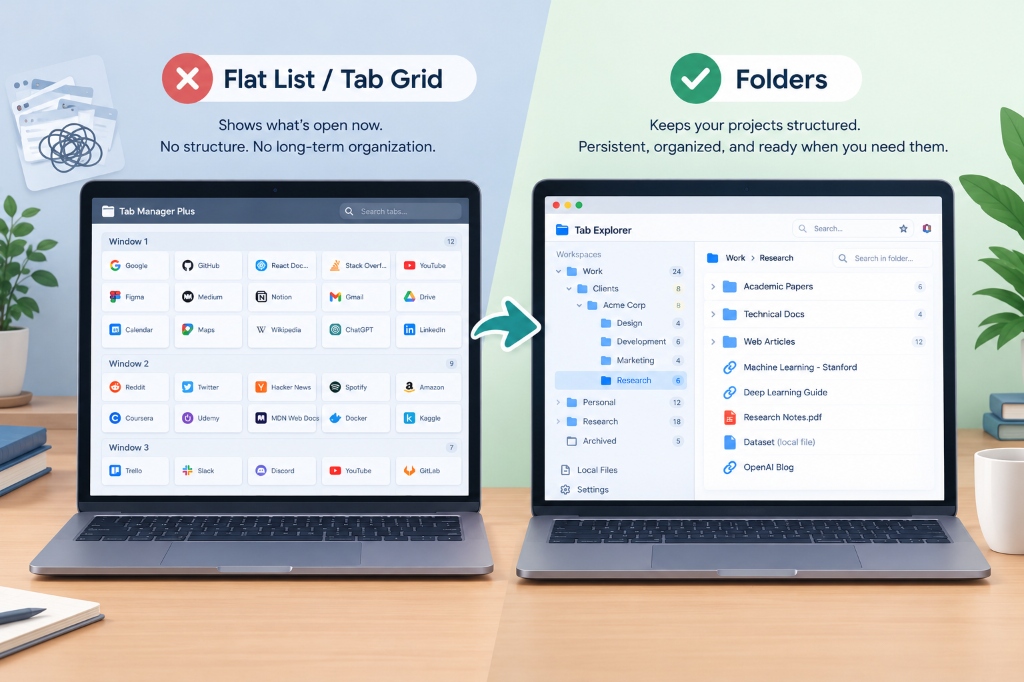
This shift separates what is running in your computer's RAM from what is filed in your project workspace:
- Storage Without Overhead: In a folder-based workspace, saving twenty research links does not consume CPU cycles or memory. The links sit organized in a lightweight directory tree until you need them.
- Contextual Structure: Instead of an undifferentiated pile of URLs, links are grouped by objective (Tax Audit 2026, React Migration, Biology Midterm). You know precisely where an asset belongs because you filed it there.
- Intentional Transitions: When you finish a work sprint, you do not let tabs linger until an algorithm evicts them. You click Save Tabs, tuck the session into its target folder, and close the window with complete peace of mind.
When your system is dependable, you stop fearing the "close" button.
TAB Explorer: A Purpose-Built Alternative to Tab Churn
If you want your browser to feel like an organized command center rather than a chaotic stream of auto-closing pages, Tab Explorer provides an alternative rooted in desktop file-explorer design.
Instead of running background timers that delete your tabs, Tab Explorer docks into Google Chrome's native side panel, providing a structured, hierarchical workspace that stays pinned alongside your active window.
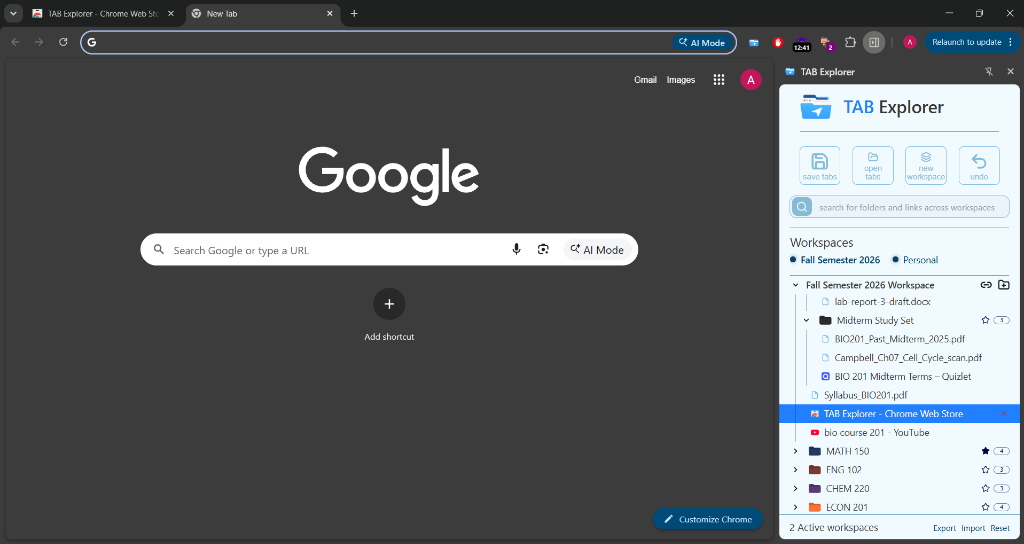
Where Tab Explorer Differs:
- Workspaces and Nested Folders: Separate distinct areas of your life (Client Work, Side Projects, Personal) and build deep folder hierarchies with subfolders, color coding, and visual guideline connectors.
- Side Panel Permanence: Tab Explorer stays right beside your webpage. You can view your project tree, drag links between folders, and reference notes without opening a popup that vanishes the moment you click away.
- Save Sprints in One Click: Press
Ctrl+Shift+S(orCmd+Shift+Son Mac) to capture every open tab directly into a project folder. Append mode automatically skips duplicates, while Replace mode lets you update an ongoing session. - Safe, Throttled Reopening: When you are ready to resume work, right-click any folder and choose Open. Built-in batch freeze protection launches links in controlled batches of ten, ensuring your machine stays smooth without freezing Chrome.
- Local Files Alongside Web Links: Real work is not purely web-based. Tab Explorer allows you to drag local PDFs, text files, and markdown drafts into your project folders, launching them in Chrome right next to your cloud docs.
- 100% Local-First Privacy: All your workspaces and folder data live exclusively on your computer. There are no cloud servers, no account logins, and zero telemetry tracking what you browse.
Which Model Fits Your Browsing Style?
Choosing between an auto-closer and an intentional workspace depends on how you use the web.
Use Tab Wrangler if:
- Your browsing is mostly recreational (reading news, forums, shopping).
- You rarely return to research across multiple days.
- You want a completely hands-off garbage collector that purges tabs without any input from you.
Choose Tab Explorer if:
- You manage complex, multi-day projects (client deliverables, coding roadmaps, academic research).
- You need your reference materials organized by topic rather than timestamp.
- You want to close tabs to save memory, but need the certainty that those links will be waiting in their proper folder when you return.
Automating tab closures gives you the illusion of a clean browser, but it trades clutter for unpredictability. Taking two seconds to file pages into purposeful folders removes tab anxiety entirely—letting you keep the pages you actually need, and close the rest on your own terms.
You can install Tab Explorer free on the Chrome Web Store to build a permanent, organized home for your browser tabs.

Tired of browser tab clutter? Try TAB Explorer
Organize open tabs into clean workspaces and color-coded folders directly inside Chrome’s native side panel. 100% local-first, zero telemetry, and free forever.
Add to Chrome — It’s Free →