
Tab Manager Plus Alternative: When You Need Folders, Not Just a Tab Grid
An honest comparison of Tab Manager Plus and folder-based tab managers. Learn when a visual tab grid works and when you need persistent project folders.
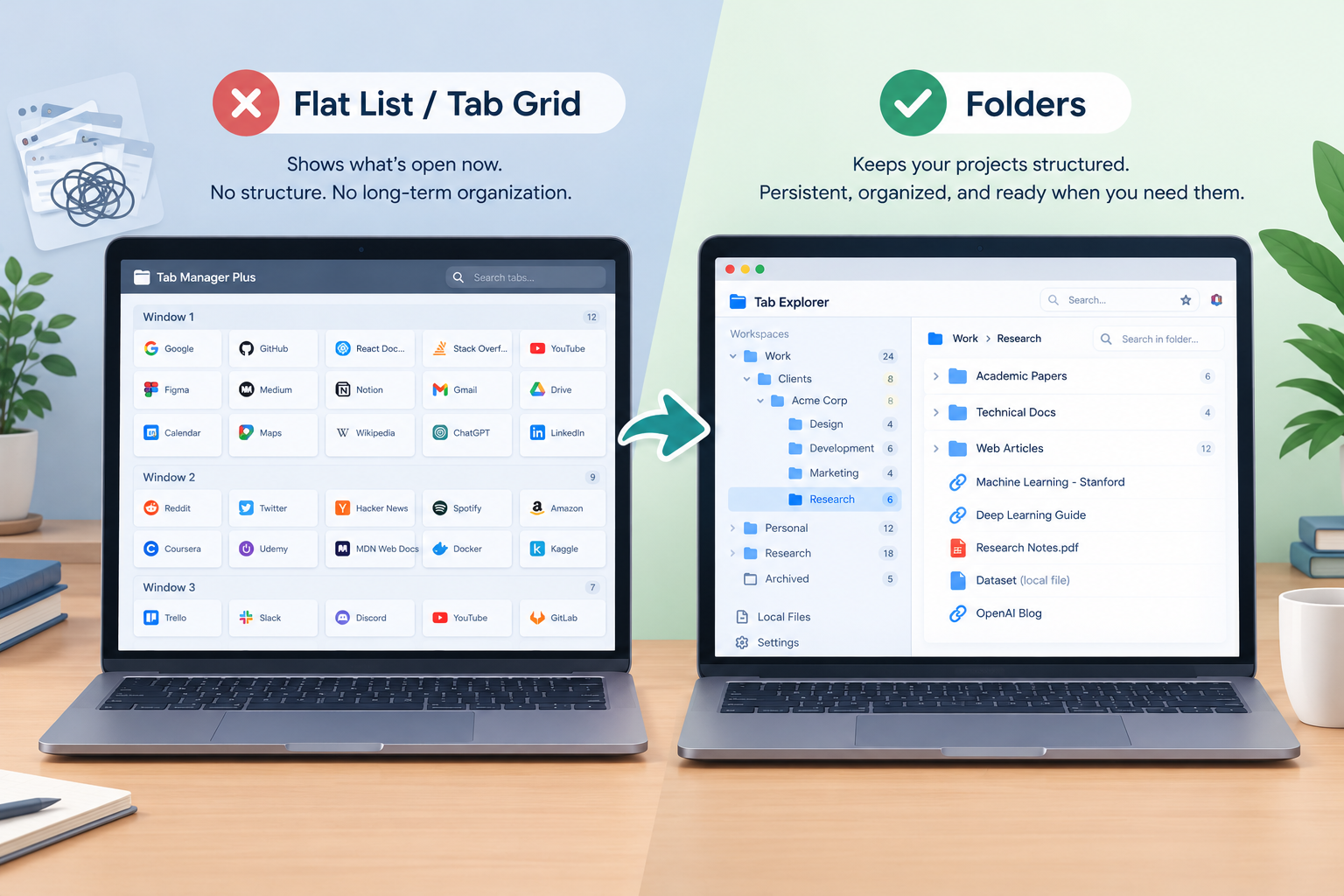
When you have forty tabs open across three browser windows, your top tab strip turns into an unreadable smear of truncated text. You cannot see page titles, you accidentally close active documents when trying to switch tabs, and your machine feels sluggish.
For years, many people solved this with Tab Manager Plus. It is a well-respected, free open source tab manager that acts like a birds-eye radar for your current session. Instead of forcing you to click through tabs one by one, it lays out your open windows in a compact grid, flags duplicate pages, and lets you drag tabs from one window to another.
If your primary pain point is navigating through the mess you have accumulated over the last two hours, Tab Manager Plus does that job admirably.
The trouble begins when your work demands structure that outlasts your current session. A visual grid shows you what is open right now, but it does not give those links a permanent home. If you close a window or finish a work block, that grid dissolves. When you need a tab manager with folders rather than a temporary control board, you need a different kind of tool.
Here is an honest tab manager plus review, a breakdown of tab manager plus vs persistent workspace organizers, and a look at how to structure browser research that spans weeks instead of minutes.
What Tab Manager Plus Gets Right
To understand why someone might search for a tab manager plus alternative, it helps to understand what made the extension popular in the first place.
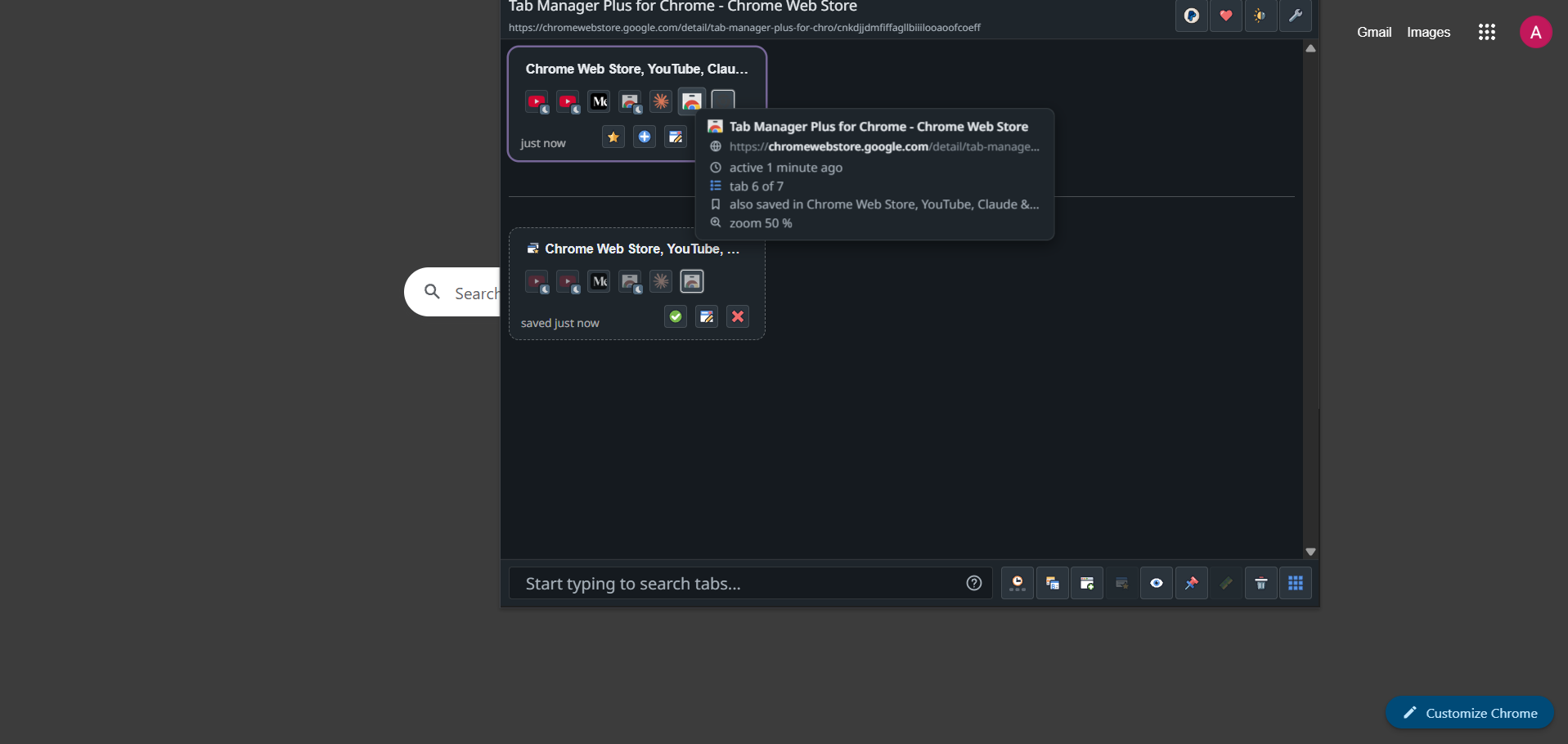
Tab Manager Plus was built to solve live session navigation. Opening its popup presents a dense, clean grid where every single open tab is represented by its favicon and title.
Three specific capabilities stand out:
- Window-Level Triage: If you split your browsing across multiple physical monitors or virtual desktops, Tab Manager Plus displays each window as a separate box in the grid. Moving eight tabs from Window A to Window B is as simple as dragging them across boxes.
- Instant Duplicate Detection: When research gets chaotic, it is easy to open the same GitHub issue or documentation page three times without noticing. The extension flags duplicate URLs so you can kill redundant tabs with a single click.
- Fast Filtering: As a dedicated search open tabs extension, typing into its search bar immediately filters the grid down to matching tabs across all open windows, letting you jump straight to the page you need.
Because it is open source and runs entirely on your machine without mandatory account sign-ups or paywalls, it built a loyal following among developers and power users who respect local data control.
Where the Visual Tab Grid Hits Its Limit
The limitation of Tab Manager Plus is not a bug; it is an architectural decision. It manages live tabs in active memory.
That design creates friction in three common scenarios:
1. Active Memory vs. Stored Knowledge
Every tile in a visual tab manager chrome grid corresponds to an active, loaded tab consuming system RAM. If you are researching a paper or compiling competitive benchmarks across forty websites, keeping all forty tabs open in memory just so they stay visible in your grid slows down your computer.
Closing those tabs frees up memory, but it also erases them from your grid. You are forced to choose between a responsive browser and losing your research trail.
2. A Flat Grid Lacks Context
In Tab Manager Plus, every tab in a window sits on the same horizontal plane. You can rearrange their order, but you cannot create a nested hierarchy.
Real work is rarely flat. A client website redesign involves wireframes, inspiration links, brand guidelines, API docs, and staging links. Shoving all of those into one window creates a messy tile board. What you actually need is a parent folder for the client, subfolders for design and development, and the ability to collapse the sections you are not using.
3. Popups Close When You Click Away
Tab Manager Plus opens as a browser action popup or in a standalone window. When you open it as a popup, clicking back onto your webpage to copy text or check a reference immediately dismisses the extension view. You have to re-trigger the icon every time you want to inspect your tabs.
When You Need Folders Instead of Grids
A folder-based workspace flips the problem on its head. Instead of asking "what tabs are running in my RAM right now?", it asks "how should my projects be structured?"
This approach separates storage from active browsing:
- Store Without Loading: You can keep sixty reference links inside a project folder without having sixty browser processes running in the background. Your machine stays fast.
- Deep Nesting: Folders can contain subfolders to whatever depth your workflow requires (Work > Clients > Acme Corp > Q4 Redesign).
- Persistent Visibility: Instead of an overlay popup that vanishes on click, modern tools dock into Chrome's native side panel, sitting comfortably beside your active document without stealing window focus.
- Controlled Reopening: When it is time to work on a specific project, you launch that exact folder. Built-in batch protections can open the links in throttled waves of ten, ensuring your browser does not choke on sudden network requests.
TAB Explorer: A Dedicated Side-Panel Folder Manager
If you have hit the ceiling of what visual grids can offer and want a structured directory system, Tab Explorer provides an alternative built around desktop file-manager conventions.
Operating inside Chrome's native side panel, it replaces flat grids with an expandable tree of workspaces, folders, links, and local documents.
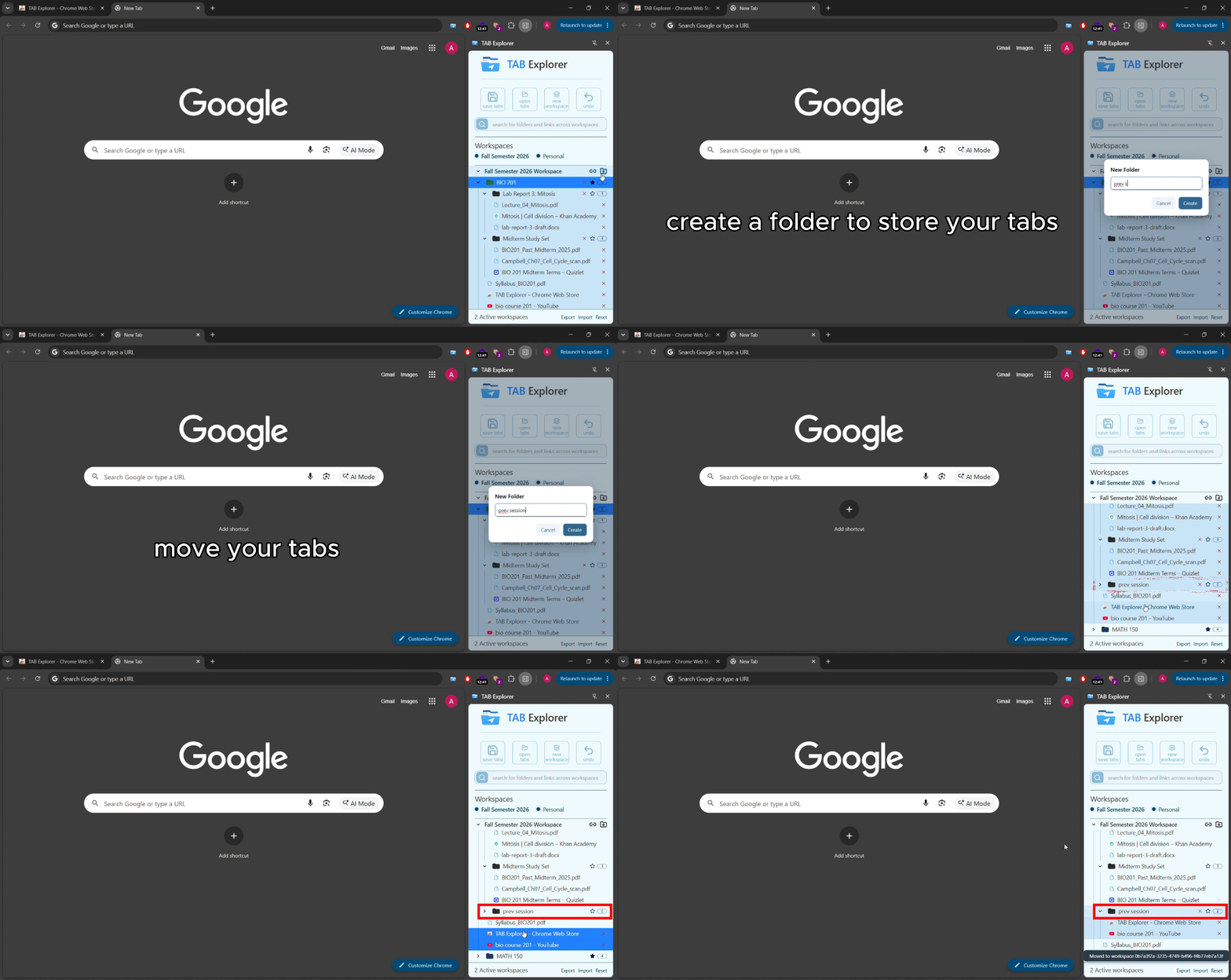
How It Differs From Tab Manager Plus:
- Workspaces and Nested Folders: Partition your work into dedicated workspaces (Client Work, Research, Personal) and nest folders as deeply as needed. Subtle connecting lines and item count badges keep deep trees easy to scan.
- Side Panel Persistence: Tab Explorer stays pinned beside your active webpage. You can browse, read, and write while your project tree remains visible and accessible.
- Local File Support: Academic papers and technical projects rarely live purely online. Tab Explorer lets you drag local file paths (PDFs, text notes, HTML documents) straight into your folders, opening them in Chrome alongside live URLs.
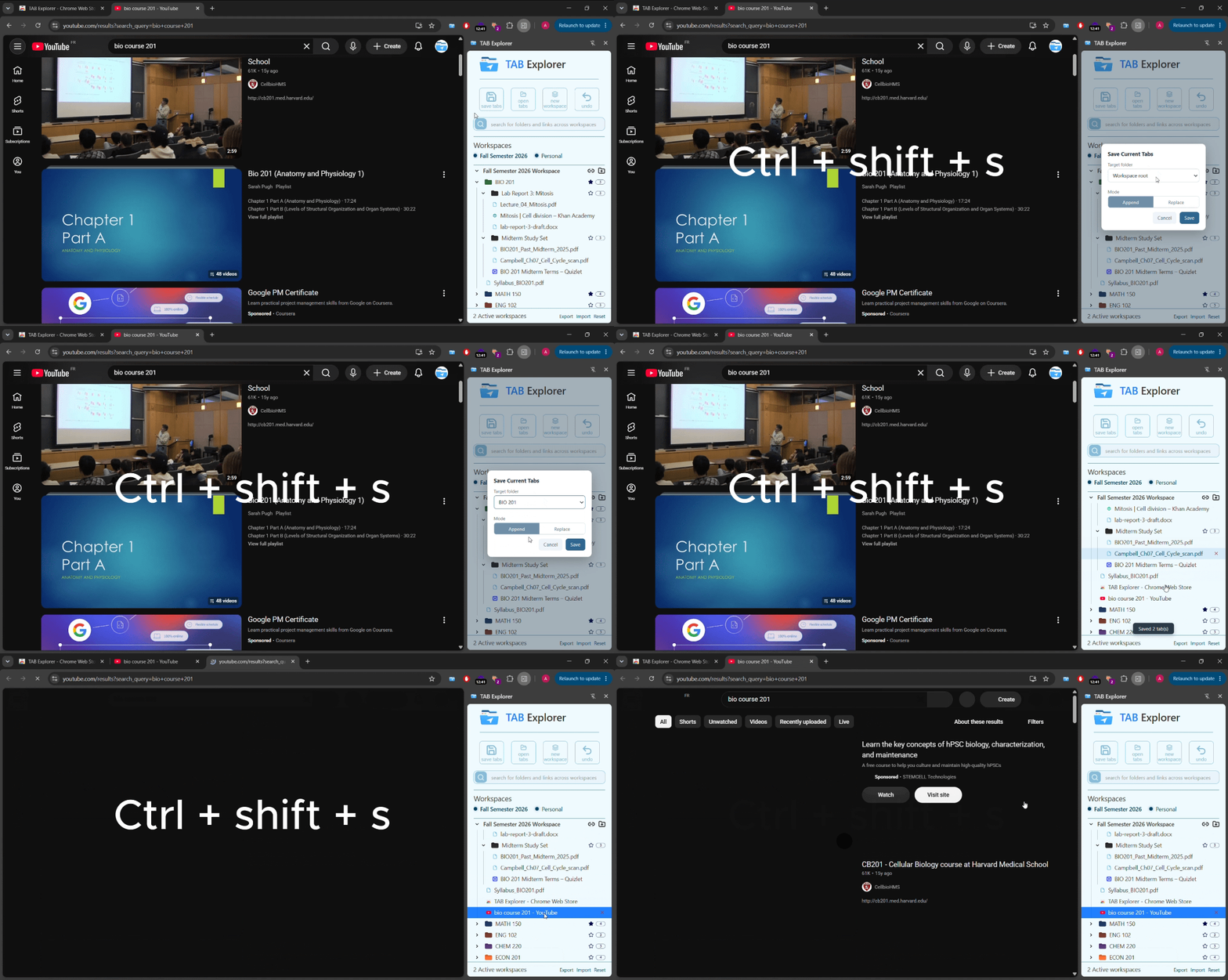
- One-Click Session Capture: When you finish a research sprint, pressing
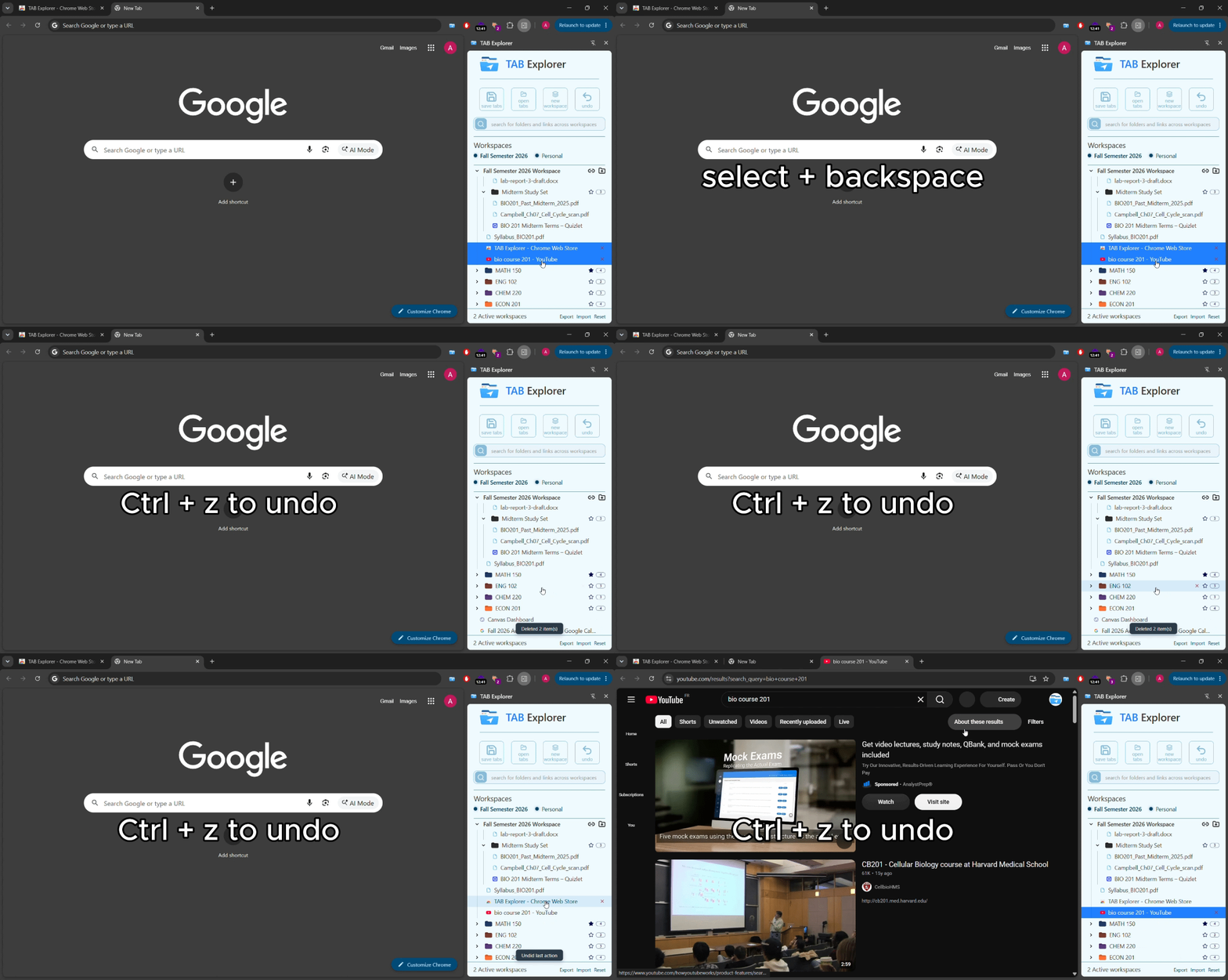
Ctrl+Shift+Scaptures your active tabs directly into a chosen folder in Append mode (which automatically skips duplicates) or Replace mode. - Full Desktop Controls: Reorder items with drag-and-drop, multiselect links with
CtrlorShift, rename inline withF2, and undo accidental deletions with a 50-step history engine (Ctrl+Z). - Local-First Privacy: Just like open-source utilities, Tab Explorer operates 100% on your device. There are no cloud servers, no account logins, and no telemetry tracking your browsing habits.
Can You Use Both Together?
Because Tab Manager Plus and Tab Explorer solve different halves of the tab problem, they do not have to be mutually exclusive.
If you like the birds-eye grid for quick window triage, you can use Tab Manager Plus during the day to spot stray duplicates and slide tabs between multiple monitors.
When you want to save that work into a permanent, structured project that you can close and reopen three weeks from now, you capture those links into Tab Explorer. One tool cleans up the immediate present; the other builds an organized library for the future.
Finding the Right Fit
If your primary challenge is locating a lost tab among thirty open windows right now, Tab Manager Plus remains a capable, lightweight utility for live session navigation.
If your frustration stems from tabs piling up because you have nowhere organized to put them, a visual grid will only show you the clutter in higher resolution. Transitioning to a folder-based side panel lets you close those tabs with confidence, organize by project, and keep your computer running smoothly.
You can install Tab Explorer free on the Chrome Web Store to test a folder-first workflow in your daily browsing.

Tired of browser tab clutter? Try TAB Explorer
Organize open tabs into clean workspaces and color-coded folders directly inside Chrome’s native side panel. 100% local-first, zero telemetry, and free forever.
Add to Chrome — It’s Free →