
Online Course Learners (Coursera, Udemy, edX): Keep Every Course in One Folder
A practical browser system for self-paced online learners to track Coursera, Udemy, and edX courses without tab sprawl or losing momentum.
Self-paced online education has a well-known retention problem. Most industry estimates suggest that fewer than 15% of people who enroll in a massive open online course (MOOC) ever finish it.
The drop-off rarely happens because the material is too difficult. It happens because adult learning happens in the thin margins of an already packed schedule. When you sit down at 8:30 PM after a full workday with forty minutes of energy to spare, your biggest enemy is setup friction.
You open your laptop intending to watch one module on Coursera or build a small project on Udemy. Instead, you spend fifteen minutes retracing your steps: finding which lesson you left off on, locating the GitHub repository for the exercises, digging out the course cheatsheet PDF from your cluttered Downloads folder, and tracking down the course discussion forum. By the time your study environment is assembled, your motivation is gone.

Learning how to organize online courses effectively is not about taking color-coded handwritten notes. It is about reducing the activation energy required to sit down and study. Here is how to build a clean, repeatable coursera udemy workflow directly in your browser.
Why Bookmarks and Open Tabs Sabotage Self-Paced Learning
Most adult learners try to track online courses using one of two failing strategies:
- The Pinned Tab Trap: You keep your Udemy video player and a practice sandbox pinned to your browser strip. Over the weekend, you do some personal browsing, open work spreadsheets on Monday morning, and suddenly your course tabs are buried under forty work-related pages. Pinning tabs treats temporary active work like permanent infrastructure.
- The Generic Bookmark Bar: You hit the star icon and drop the course URL into a catch-all "Learning" folder. Two weeks later, clicking that bookmark drops you onto the platform's marketing homepage or main dashboard rather than your active module, forcing you to navigate three menus just to resume playback.
Neither approach accounts for the reality that a modern course is an ecosystem of scattered tools, not a single video link.
The "One Course, One Folder" Anatomy
A resilient mooc study setup packages everything you need for a specific class into a single, self-contained course links folder.
Whenever you start a certification, bootcamp, or skill track, create a dedicated folder bearing the exact course name (for example, Python for Data Science - edX). Inside that folder, store five specific anchors:
- The Direct Module Resume Link: Do not bookmark the platform catalog page. Bookmark the exact video player URL or lesson index where your current module sits.
- The Practice Environment: Whether you are using a Google Colab notebook, a GitHub repository of coding exercises, or a Figma community file, save the exact workspace where you do the work.
- Your Running Notes Document: A direct link to your personal summary doc, whether hosted in Google Docs, Notion, or your preferred note-taking tool.
- Local Course Materials: Instructors frequently provide downloadable slide decks, reference manuals, and PDF cheatsheets. Instead of letting them rot in your computer's Downloads directory, link the local file paths directly inside your course folder so they open in Chrome alongside the lecture.
- Community and Discussion Channels: Keep the course's Discord server, Slack workspace, or platform Q&A forum in the same folder. When you run into a bug in an exercise, you can check the forum without getting sidetracked by general internet searches.
When your resources are bundled this way, opening your course folder opens your entire classroom.
Managing Active Courses vs. The Backlog
One of the easiest ways to derail self paced learning organize routines is taking on too many subjects simultaneously. Buying four heavily discounted courses on Udemy is easy; completing four courses concurrently while working full-time is nearly impossible.
Structure your online learning organization into two distinct tiers:
- Active Courses (Strict Limit: 1 to 2): These are the only courses that belong in your immediate daily rotation. Keep their folders pinned or placed prominently at the top of your directory.
- Backlog / Reference: Courses you have purchased, partially reviewed, or completed. Move them into a collapsed Completed & Backlog archive.
If you decide to pause a machine learning course to focus on a web development sprint, you simply move its folder into the archive. None of your bookmarks, notes, or local PDF paths are lost, but they are safely tucked away so they do not create visual guilt every time you launch your browser.
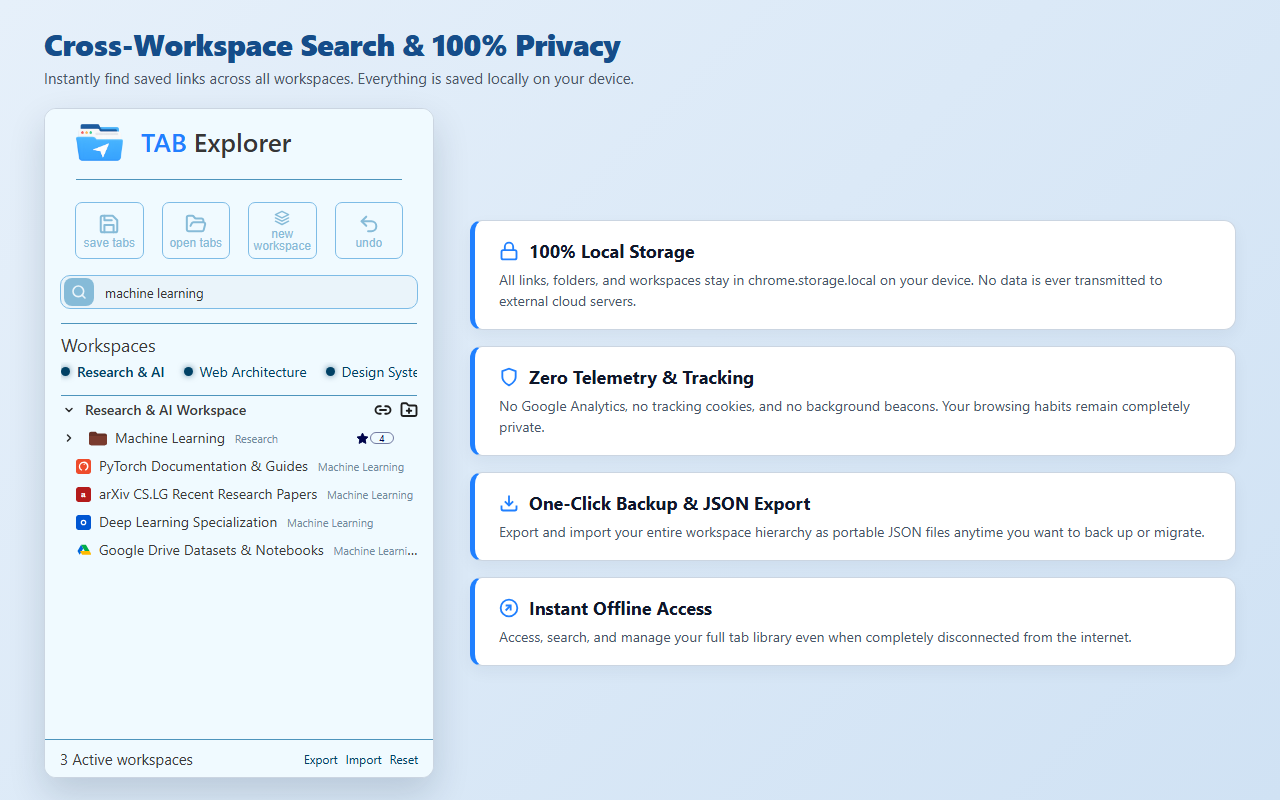
Streamlining Your Study Sprints With Tab Explorer
If you are using Google Chrome, Tab Explorer provides the exact folder-tree hierarchy needed to manage self-paced courses without cluttering your browser.
Operating right inside Chrome's native side panel, it gives you a dedicated workspace to manage your learning:
- Create a Dedicated "Courses" Workspace: Use the top switcher to keep your online learning completely separated from day-job spreadsheets and personal web browsing.
- Color-Code and Star Active Classes: Give your active Coursera specialization a distinct folder color and star it to keep it pinned at the top level of your side panel.
- Link Local Lecture Slides and Cheatsheets: Drag downloaded exercise zip files, lecture PDFs, and reading assignments straight into your course folder. They sit cleanly beside web links and launch in Chrome with a click.
- Launch Your Entire Study Environment Instantly: When your evening study window opens, right-click your course folder and choose Open. Tab Explorer launches your video player, coding notebook, and notes simultaneously, using built-in batch freeze protection to prevent browser lockups.
- Capture Research Sprints With One Click: If you open six documentation tabs while solving a tricky course assignment, hit
Ctrl+Shift+S(Cmd+Shift+Son Mac) to save them straight into your course subfolder using Append mode, which automatically avoids duplicate links.
When you are learning on your own time, every minute spent searching for lost tabs is a minute taken away from actual skill building. Giving each course its own structured home in your browser ensures that whenever you have thirty minutes to spare, you can sit down and start learning immediately.

Tired of browser tab clutter? Try TAB Explorer
Organize open tabs into clean workspaces and color-coded folders directly inside Chrome’s native side panel. 100% local-first, zero telemetry, and free forever.
Add to Chrome — It’s Free →