
AI Power Users: Keep ChatGPT, Claude and Gemini Sessions Organized Per Project
How to organize ChatGPT, Claude, and Gemini conversations by project alongside your docs and code instead of losing them in endless sidebar histories.
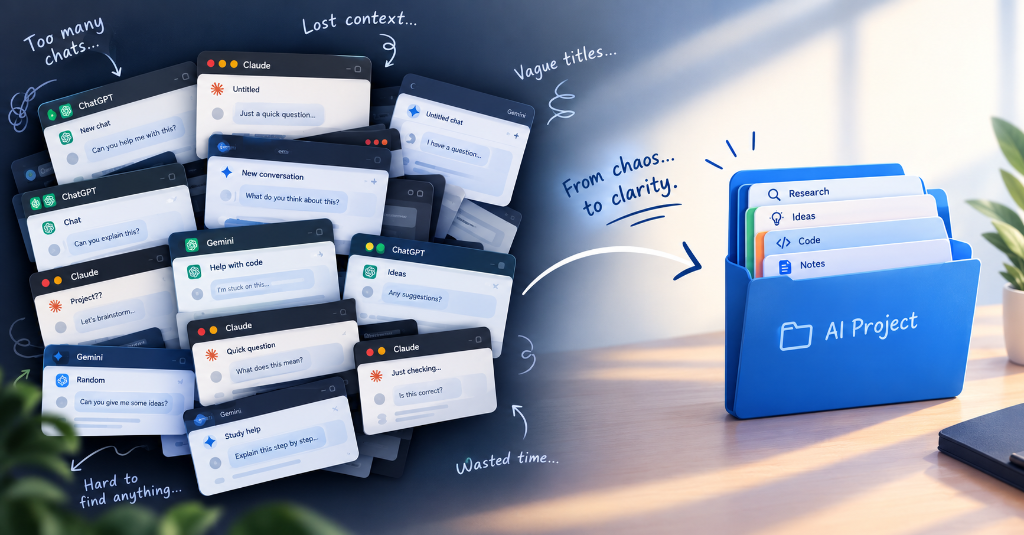
If you use artificial intelligence for daily professional work, you probably do not rely on just one model. Most power users bounce between tools depending on the job: drafting technical specifications or refactoring code in Claude, brainstorming copy or troubleshooting bash scripts in ChatGPT, and parsing massive PDFs or cross-referencing research in Gemini.
The problem starts about two weeks in.
Each web interface maintains its own chronological sidebar history. ChatGPT gives you a vertical scroll of sixty vaguely titled conversations like "Help with Python script" and "Quick question." Claude keeps another running list with its own search quirks, and Gemini logs conversations under your Google account.
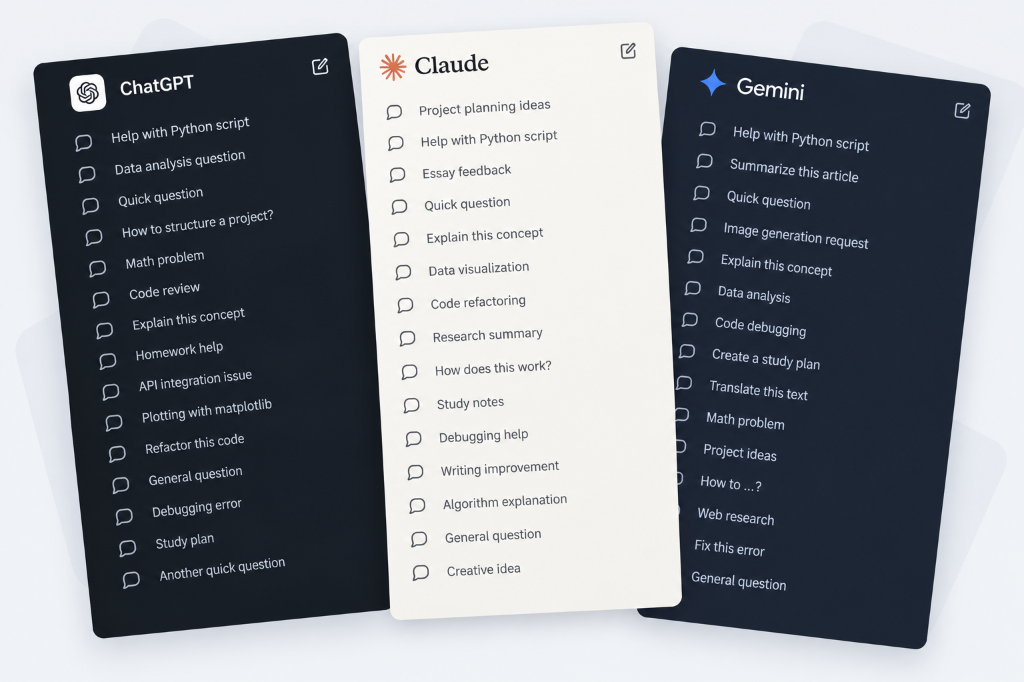
Before long, you spend five minutes before every work session just hunting down the conversation where you spent an hour tuning a prompt. Worse, your AI conversations sit completely isolated from the rest of your tools—the Google Doc, the GitHub pull request, the Jira ticket, or the client brief.
Learning how to organize ai chats by project bridges this gap, turning disposable chat threads into a durable, structured knowledge base.
The Flaw of Platform-Specific Folders
Many users look for a chatgpt folders alternative or browser scripts that inject folder hierarchies directly into chatgpt.com. While these extensions can tidy up a single platform, they stumble over two fundamental realities of how knowledge workers actually operate.
First, model lock-in breaks down. Organizing threads inside ChatGPT does nothing to help you claude conversations organize or track Gemini sessions. As newer models emerge and workflow preferences shift, keeping your organization locked inside one specific web app creates data silos.
Second, AI prompts do not exist in a vacuum. A conversation where you debugged an OAuth2 implementation belongs next to the API documentation and your staging dashboard, not in an isolated chatbot sidebar. When you organize chatgpt conversations within the chat window alone, you separate the conversation from the project it was meant to advance.
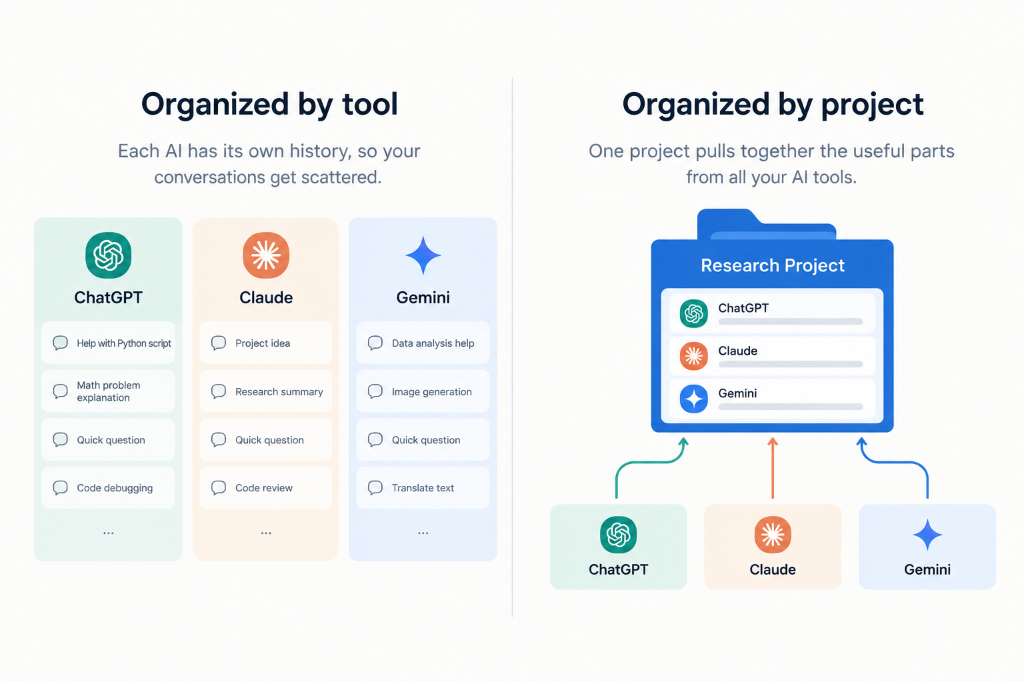
The Project-Centric Architecture
A more resilient approach is to lift your organization out of the AI interfaces and into your browser workspace. Instead of grouping links by tool, group them by project.
Create a dedicated folder for each active initiative (for example, Q4 Checkout Redesign or API Migration). Inside that single project folder, collect everything required to execute the work:
- The Core AI Threads: The exact URLs of your active chat sessions across models. Save the Claude conversation where you drafted the component tests, alongside the ChatGPT thread where you benchmarked SQL queries.
- Project References: The live pull request on GitHub, the Figma design file, or the staging URL.
- Internal Documentation: The Notion product requirements document or Google Docs specification.
- Local Prompt Drafts and Cheatsheets: If you maintain system prompts, sample JSON payloads, or markdown scratchpads on your computer, save their direct local file paths right alongside your web links.
When you sit down to work on that specific initiative, you do not have to piece together context from four browser windows. Your entire llm sessions workflow sits in one tidy container.
Visual Scanning With Smart Brand Logos
When you save ai chat links across different platforms into a browser folder, standard bookmarks tend to blur together into a wall of generic favicons.
To make an ai research workflow easy to navigate at a glance, visual distinction matters. You want to see immediately which link is an active Claude prompt, which is a ChatGPT thread, and which is a Google Drive document.
This is where visual customization becomes practical. When choosing a browser workspace manager, look for tools that automatically detect major AI platforms and apply recognizable brand icons for ChatGPT, Claude, Gemini, DeepSeek, and Kimi. Being able to spot the purple Claude glyph or the green ChatGPT icon next to your project tickets saves you from reading through eight long URLs just to find the right chat.
Running Sprints Without Losing Context
Organizing chats by project also changes how you transition between tasks during the workday.
When you are deep in a research sprint, you might branch a conversation into three separate tangents: one analyzing edge cases, another testing error messages, and a third formatting documentation.
Instead of leaving those tabs open forever or copying long summaries into a notepad, use a one-click session capture. Saving your active tabs directly into your project folder with Append mode captures all newly opened references while automatically ignoring duplicates.
Once the sprint is complete and the code is deployed or the article is published, you can close the entire tab group. Your AI conversations remain safely filed in that project's folder. If a bug surfaces three months later, you can reopen the exact chat thread, review the original prompt chain and reasoning, and pick up right where you left off.
Protecting Client Data and Code Privacy
Professional AI users frequently handle proprietary code, internal business data, and confidential client communications. The tools you use to manage those links must respect data privacy.
Many cloud-based bookmark managers and tab organizers sync your links, folder hierarchies, and browsing metadata through remote servers. If you are saving URLs that contain shared session tokens or proprietary document IDs, third-party cloud synchronization can introduce compliance risks.
Using a local-first browser manager ensures your project folders, links, and workspace hierarchies remain strictly on your own machine. Zero cloud accounts, zero remote tracking, and zero telemetry means your sensitive project references never leave your computer.
Setting Up Your AI Workspace With Tab Explorer
If you want a clean, side-by-side workspace inside Google Chrome, Tab Explorer provides the exact file-explorer structure needed to organize multi-model workflows.
Running directly in Chrome's native side panel, it gives you a dedicated command center for your projects:
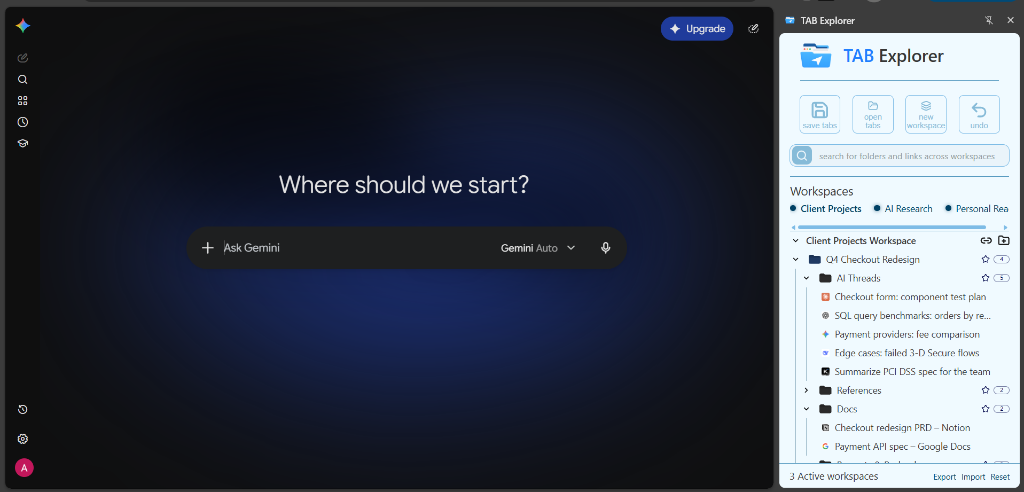
- Dedicated Workspaces: Keep an AI Research or Client Projects workspace separate from your daily browsing and personal reading tabs.
- Automatic AI Brand Icons: Tab Explorer natively recognizes URLs from ChatGPT, Claude, Gemini, DeepSeek, and Kimi, automatically assigning crisp, high-resolution brand icons so your prompt links stand out instantly.
- Mix Local Files With Live Chats: Drag local markdown prompt templates, reference datasets, or PDF specs straight into your project folders alongside live chat sessions.
- One-Click Folder Launching: Right-click a project folder and choose Open to launch your AI chats, code repository, and spec docs together. Built-in batch freeze protection throttles tab loading so your browser stays smooth and responsive.
- 100% Local Storage: Everything you save is stored exclusively on your device, with no cloud servers, no account registration, and zero data inspection.
AI tools are only as useful as your ability to retrieve the insights they generate. Grouping your conversations by project turns fleeting chatbot sessions into an organized, reusable system you can rely on every single day.

Tired of browser tab clutter? Try TAB Explorer
Organize open tabs into clean workspaces and color-coded folders directly inside Chrome’s native side panel. 100% local-first, zero telemetry, and free forever.
Add to Chrome — It’s Free →