
The Morning Launch Folder: Open Your Daily Sites in One Click
A simple guide to launching your daily work stack in Chrome without lagging your machine or locking your browser into rigid startup pages.
Every workday begins with roughly the same repetitive sequence. You open your laptop, launch Google Chrome, and spend your first three minutes hunting through bookmarks or typing URLs from memory: email inbox, project board, team messaging, calendar, issue tracker, and analytics dashboard.
Doing this once feels harmless. Doing it two hundred and fifty mornings a year is pure friction. It scatters your attention before you write a single sentence or review a single ticket.
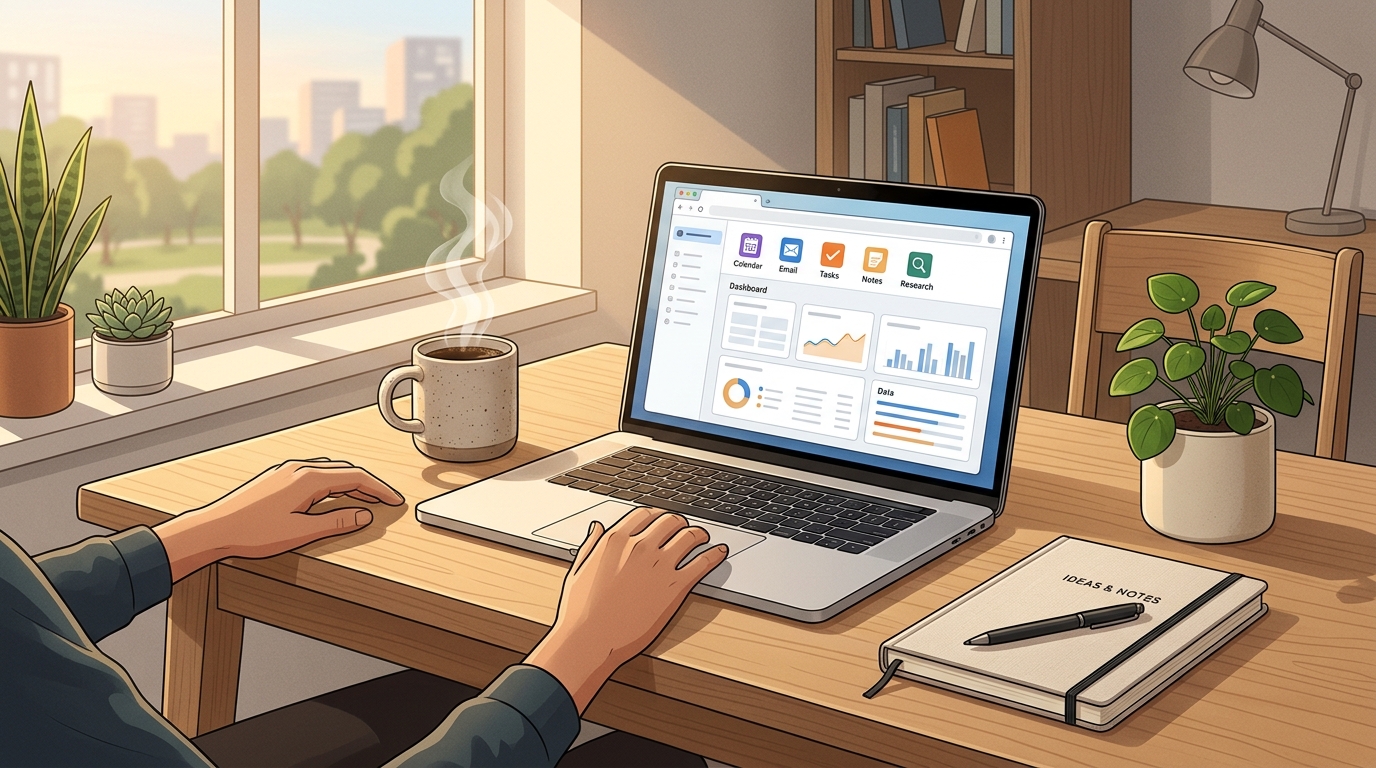
Most people looking to streamline this sequence try to open multiple websites at once chrome features offer out of the box. While Chrome has built-in startup settings, they often create more annoyances than they solve.
Here is how native startup options work, why an on-demand morning launch folder is more flexible, and how to build a reliable morning routine browser workflow that never bogs down your computer.
The Built-in Way: Chrome Startup Pages
Google Chrome includes a native mechanism to launch specific websites every time the browser starts.
If you want to configure this directly in Chrome:
- Open the three-dot menu in the top-right corner and select Settings.
- Click On startup in the left sidebar.
- Select Open a specific page or set of pages.
- Click Add a new page to enter URLs individually, or arrange your tabs and click Use current pages.
This enables chrome open specific pages on startup, loading that predetermined list every time Chrome launches fresh.
Why Native Startup Pages Fall Short
While chrome startup pages multiple setup looks convenient on paper, it has three practical drawbacks in day-to-day use:
- Zero Flexibility Across Contexts: Native startup pages trigger every single time you open Chrome. If you open your browser on a Saturday morning to check a movie listing or look up a recipe, Chrome still forces your company email, Jira board, and project tracker to load.
- Interference With Session Restores: If Chrome closes unexpectedly or restarts after an operating system update, having a fixed set of startup URLs can clash with your desire to restore previous research tabs, leading to lost context.
- Network and CPU Spikes: When Chrome launches five to ten heavy web applications simultaneously on boot, your laptop fan spins up, scripts fight for bandwidth, and you stare at a frozen screen while everything renders at once.
Automatic startup pages turn what should be an intentional choice into an unavoidable penalty every time you launch your browser.
The Better Alternative: The On-Demand Launch Folder
A cleaner approach is to decouple your morning stack from the browser's launch event. Instead of forcing pages to open automatically on startup, you keep an on-demand launch folder that lets you open favorite sites at once the exact moment you are ready to start work routine browser sessions.
This shift solves the flexibility problem completely. You open Chrome whenever you want without penalty. When coffee is poured and work officially begins, you trigger your daily websites one click routine.
What Goes Into a Morning Launch Folder?
Depending on what you do, your launch bundle looks different:
- Customer Support & Operations: Helpdesk dashboard (Zendesk / Intercom), internal company wiki, shared team inbox, and escalation spreadsheet.
- Product & Engineering: Pull request queue on GitHub, sprint board on Jira or Linear, production error monitoring, and staging environment.
- Marketing & Content: Web analytics, content calendar in Notion, social media scheduler, and newsletter dashboard.
- Freelancers & Consultants: Time tracking portal, client communication channel, invoicing dashboard, and shared project Google Drive.
By grouping these core services into a single folder, you protect your focus. You do not get sidetracked by miscellaneous browsing on your way to opening your primary tools.
Avoiding the "Tab Freeze" When Launching Everything
There is a catch with opening multiple pages simultaneously: modern web apps are heavy.
If you right-click a standard Chrome bookmark folder with twelve web applications and select "Open all," Chrome attempts to fetch and execute every JavaScript bundle in parallel. Memory spikes, your operating system throttles background processes, and your browser becomes completely unresponsive for twenty to thirty seconds.
To make an on-demand launch folder practical, you need throttled tab opening. Opening links in controlled, spaced batches allows Chrome's network and rendering threads to complete the initial handshake smoothly without locking up your machine.
Building Your Morning Launch Stack With Tab Explorer
If you want a dedicated launchpad that lives beside your active tabs without cluttering your main bookmark bar, Tab Explorer provides an ideal setup directly in Chrome's native side panel.
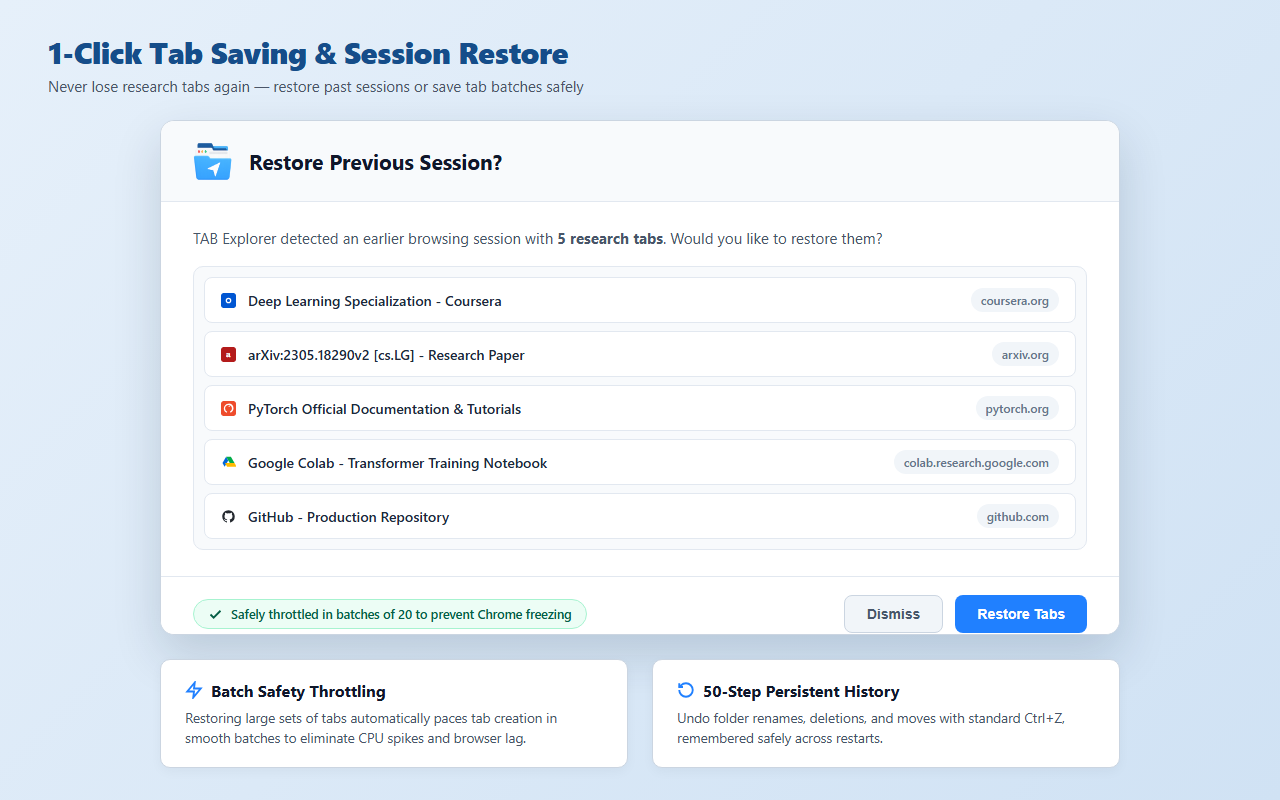
Here is how to set up an effortless morning launch folder:
- Create a "Daily Routine" Folder: Inside your active workspace in Tab Explorer, create a top-level folder titled Morning Launch or Daily Setup. You can assign it a custom color and star it so it stays pinned at the very top of your panel.
- Save Your Daily Stack in One Click: Arrange your standard morning tabs across your browser window once. In Tab Explorer, click Save Tabs (or hit
Ctrl+Shift+Son Windows,Cmd+Shift+Son Mac) and choose your Morning Launch folder. - Include Local Reference Files: If your morning kickoff includes checking an offline daily planner PDF, a local markdown scratchpad, or a time-tracking spreadsheet, drag the file path directly into your folder. Tab Explorer lets local files sit right alongside web links.
- Launch Smoothly on Demand: Every morning, simply right-click your Morning Launch folder and choose Open. Tab Explorer includes built-in batch freeze protection, opening links in controlled batches of ten so your browser never freezes or stutters.
- Close When Finished: Once you finish your initial morning triage (inbox cleared, tickets updated), you can close those tabs and switch to a project-specific folder, keeping your browser completely clutter-free for the rest of the day.
Your morning routine should help you build momentum, not test your patience with laggy startup pages. Setting up an on-demand launch folder gives you full control over when and how your daily workspace comes alive.
Tired of browser tab clutter? Try TAB Explorer
Organize open tabs into clean workspaces and color-coded folders directly inside Chrome’s native side panel. 100% local-first, zero telemetry, and free forever.
Add to Chrome — It’s Free →