
Best Tab Managers for Students: Study Tab Savers on the Chrome Web Store
A realistic comparison of tab savers and workspace tools for students balancing five courses, local PDFs, and research tabs across a full semester.
A typical semester does not happen in a single browser tab. By week four, you are balancing five separate courses, each with its own learning portal, weekly lecture slides, digital textbook chapters, discussion boards, and research papers.
Before long, your Chrome tab strip turns into a tight squeeze of eighty identical icons. You cannot tell where your calculus problem set ends and your biology lab report begins. Finding the best tab manager for students comes down to how your brain handles that academic sprawl: do you just need an emergency panic button to dump tabs when your laptop fan starts screaming, or do you need a structured student workspace extension that keeps each subject organized until final exams?
Here is an honest look at how different styles of study tab savers compare on the Chrome Web Store, and what actually works across a demanding semester.
The Two Common Approaches (and Where They Break Down)
When students search for a study tab saver chrome extension, they usually encounter two extreme design philosophies.
1. The Emergency Dump Tools (List Savers)
Extensions in this category take every open tab in your window and collapse them into a single plain list on a blank webpage.
They serve one clear purpose: freeing up memory instantly when your browser is lagging during a lecture. The problem starts when you try to use them as an everyday organization system. If you dump twenty-four tabs on a Tuesday evening while switching between organic chemistry and microeconomics, those links end up in a single timestamped pile. Two weeks later, when you need that specific journal article on reaction kinetics, you have to scroll through dozens of disconnected links with no subject separation.
A flat dump is helpful for emergency cleanup, but terrible for keeping track of ongoing coursework.
2. Heavy Cloud Hubs
On the other end of the spectrum sit enterprise-style workspace platforms. These tools replace your new tab page with full-screen dashboards, cards, and team-sharing features.
While they offer structure, they often feel too heavy for individual study routines. Many require mandatory account creation, constantly sync your browsing data to cloud servers, and gate essential features—like saving more than a handful of workspaces—behind monthly subscriptions that do not fit a student budget.
Most students do not need team collaboration boards to finish a history paper; they just want their links neatly grouped and accessible without extra friction.
Why a Semester Needs Folder Hierarchy
College courses run in parallel, but you study in focused sprints. When you sit down on Thursday afternoon to work on a statistics assignment, you want your lecture notes, dataset, and formula sheet open. You do not want thirty tabs from your art history seminar cluttering your view.
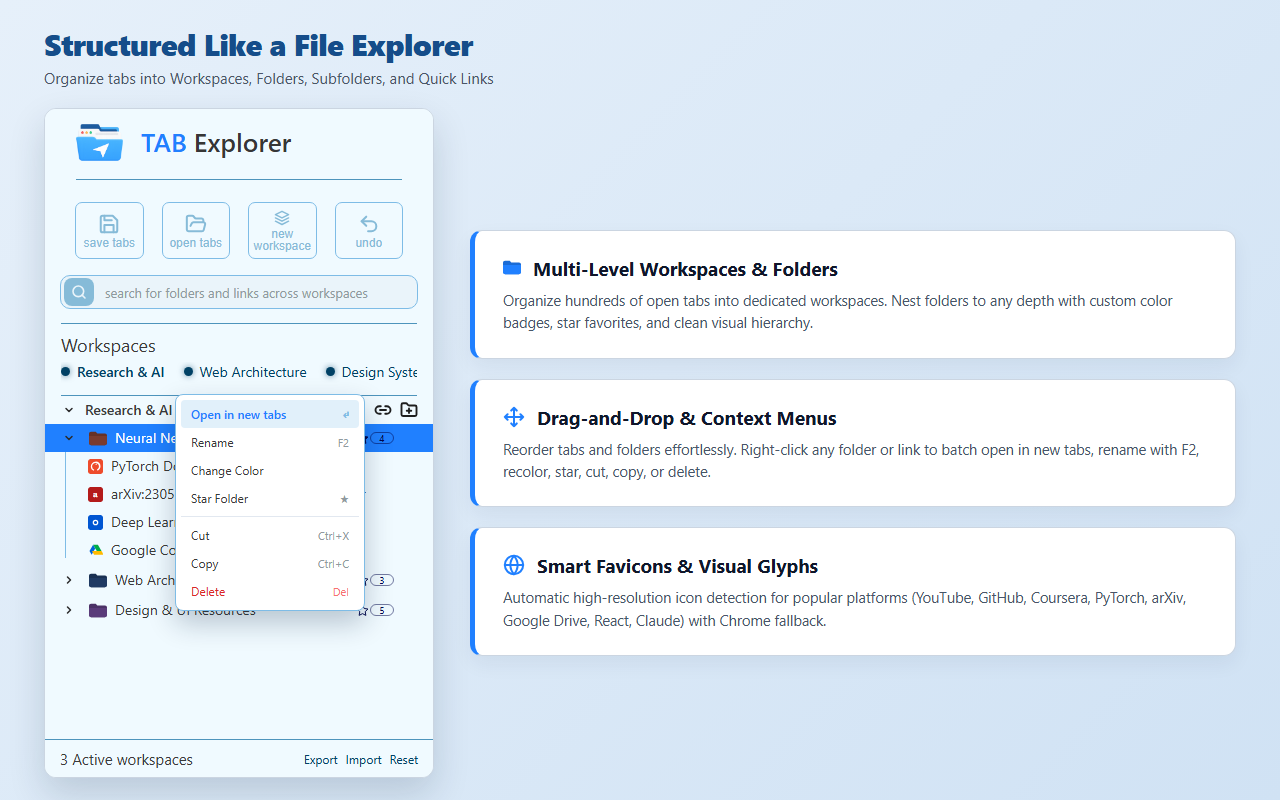
This is where a folder-based tab manager for studying shines over flat list savers. Instead of dumping everything into one bucket, you build a directory tree that mirrors your academic schedule:
- Root Level: A dedicated workspace for the term (e.g., Fall Semester 2026).
- Course Level: Individual folders for each enrolled class (BIO 201, MATH 150, ENG 102).
- Assignment Level: Subfolders for major projects, lab reports, or midterm study sets.
When your browser reflects your actual course syllabus, switching subjects takes seconds. You close the tabs from your morning lecture and launch the exact set needed for your evening problem set with one click.
Handling Local Documents Alongside Web Links
One blind spot of almost every traditional save study links extension is that academic research rarely stays purely on the live web.
As a student, half of your study materials live on your hard drive:
- Downloaded syllabus and assignment prompt PDFs
- Lecture slide slide decks from Canvas or Blackboard
- Scanned textbook chapters and past exams
- Drafts of your essays and research papers
If your tab manager only saves web URLs, you spend your entire study session bouncing between Chrome and your computer's file explorer.
A modern chrome extension for studying should let you drop local file paths right into your subject folders alongside university portals. Keeping Lecture_04_Mitosis.pdf right next to the lab submission portal means your complete project context lives in one place.
What to Look for When Choosing a Study Tab Saver
Before installing an extension from the Chrome Web Store, check it against these practical student requirements:
- Native Side Panel Support: Tools that run in Chrome's native side panel remain pinned alongside your active readings without stealing screen space or disappearing every time you click a webpage.
- Batch Opening Safeguards: Opening fifteen heavy academic portals at once can freeze Chrome. Look for tools with built-in throttled batch opening that launch links in small groups to prevent browser lockups.
- No Subscription Walls: You should never have to pay a recurring monthly fee just to create enough folders for all your classes.
- Local-First Privacy: University coursework often involves student ID numbers, confidential drafts, and portal tokens. An extension that stores your links locally on your own computer—without cloud servers or background telemetry—protects your academic privacy.
- Instant Cross-Course Search: When finals week arrives and you vaguely remember saving a paper on macroeconomic policy two months ago, a global search bar with breadcrumb paths helps you locate it across all folders instantly.
Organizing Your Courses With Tab Explorer
If you want a clean, desktop-style system that lives right inside your browser, Tab Explorer was built for exactly this type of multi-subject workflow.
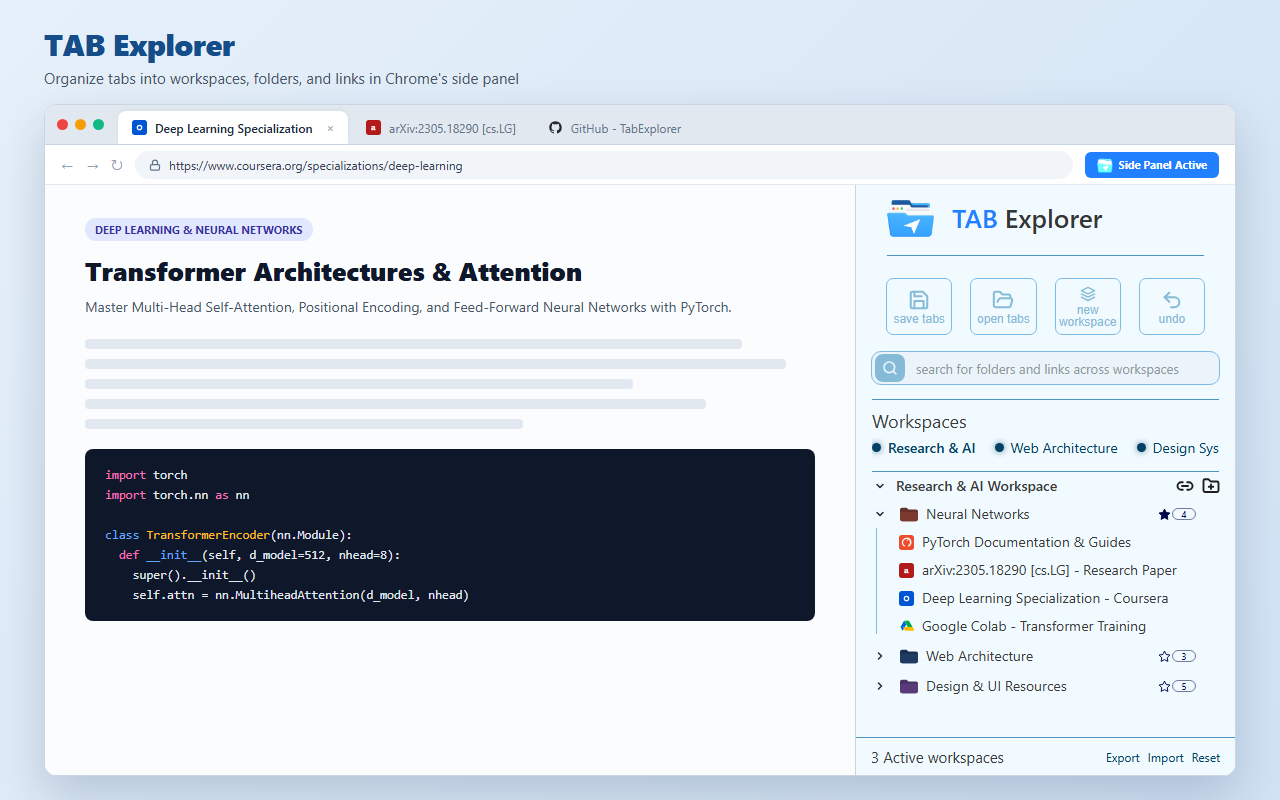
Running in Chrome's native side panel, it gives you a familiar directory tree to help homework tabs organize naturally:
- Workspaces for Terms: Keep an Academics workspace separate from personal browsing, social media, and side projects.
- Nested Color-Coded Folders: Give each course its own color-coded folder and star your most urgent classes to keep them pinned at the top.
- Local PDF Integration: Drag downloaded lecture slides and syllabus PDFs directly into your course folders to launch them in Chrome alongside online portals.
- One-Click Session Capture: Hit
Ctrl+Shift+S(Cmd+Shift+Son Mac) after a long research sprint to capture your open tabs directly into a specific assignment folder using Append mode, which automatically skips duplicates. - 50-Step Undo: If you accidentally delete a folder containing three weeks of thesis research,
Ctrl+Zbrings it right back with all links intact.
You can install Tab Explorer free from the Chrome Web Store. Taking ten minutes at the beginning of the semester to set up clean folders will save you hours of tab-hunting when midterms arrive.

Tired of browser tab clutter? Try TAB Explorer
Organize open tabs into clean workspaces and color-coded folders directly inside Chrome’s native side panel. 100% local-first, zero telemetry, and free forever.
Add to Chrome — It’s Free →